The Generative AI report in Search Console: what is in it, what is not, and how to use it
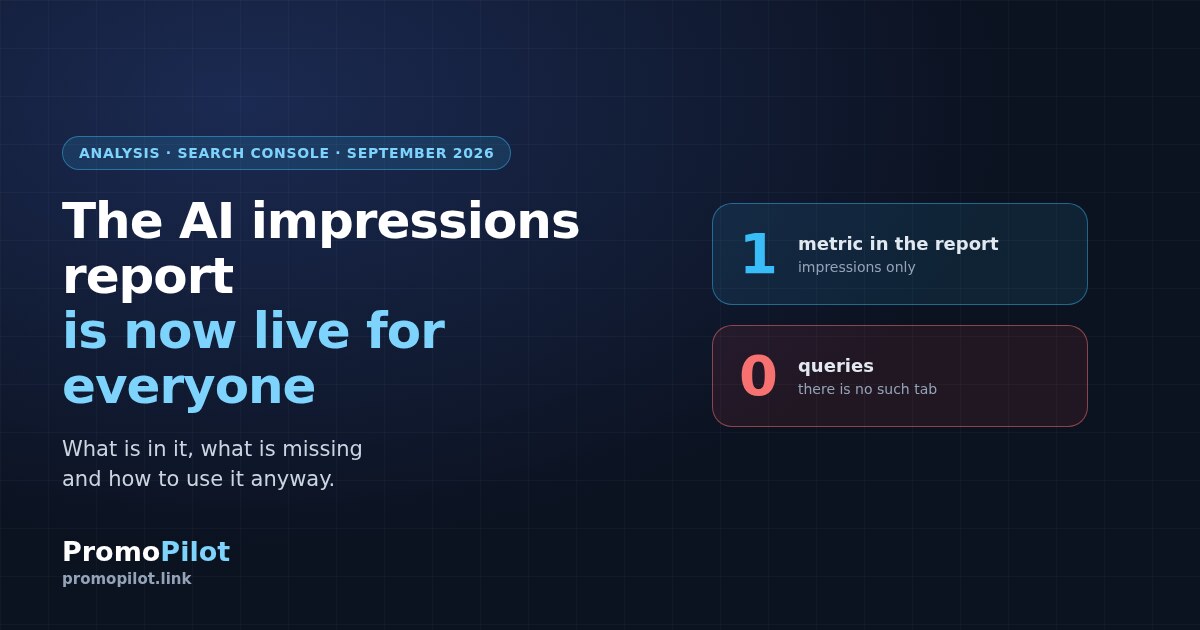
Since 31 August 2026 the report on visibility in Google's generative features is available to every site. It carries exactly one metric — impressions — and not a single query. We unpack its contents from Google's documentation, show the method that makes it useful anyway, and lay out the four levers that govern appearing in AI features.
On 31 August 2026 Google added one line to its documentation: the report on visibility inside AI features has been rolled out to every site in the world. Which means it has appeared for you too — and you have most likely not opened it yet. Below: what is actually in it, which important piece is missing, how to extract meaning from what is left, and which switch governs the whole thing.
What this report is
It is called Generative AI performance and sits in Search Console next to the ordinary performance report. It shows one thing: how many times links to your site were shown to people inside Google's generative features — in AI Overviews and in AI Mode.
Formally it is a subset of Web search from the main report: the same impressions, filtered down to AI features. Search Labs experiments do not make it in. Discover has a separate report with its own set of tabs.
On the rollout Google is unambiguous:
"As of August 31, 2026, we've rolled out these insights to all websites worldwide."
With a caveat: not every property may have access at once, and to appear in the report at all a site needs enough impressions.
Google Search Console HelpThe main gap: there are no queries
The report has four tabs — pages, countries, devices, dates. There is no queries tab at all. This is not a temporary limitation or a bug: the measurement is built so that you see where you were shown, but not what prompted it.
The practical consequence: the familiar move — look at which queries put you into AI answers and write pages to match — is impossible. All you have is page addresses and geography. From there you work with your head, not with a filter.
The second limitation is that there is exactly one metric. Impressions. No clicks, no CTR, no positions. Understand this before drawing conclusions: a rise in AI impressions on its own says nothing about traffic. It says you are being included in answers more often — whether anyone came to you afterwards, the report does not know.
How to extract meaning anyway
Since absolute numbers say almost nothing, only comparison works. Below is the order in which this report starts producing value. Each step comes with a check that shows you have passed it.
Confirm there is data at all
Open the report and look at the chart. An empty report means one of three things: your property does not have access yet; the site has not gathered enough impressions; or the site is excluded from AI features by the switch described below.
The third is checked in a second and turns up more often than you would think — particularly if somebody handled the site's settings before you did.
Calculate a share, not an absolute
"12,400 impressions" on its own means nothing. What matters is the share: how much that is of all your Web search impressions over the same period. Take the main performance report, restrict it to the Web type and the same date range, and divide one by the other.
That percentage is the only figure worth recording and tracking. It answers the question "what part of my visibility in Google already comes from AI features", and it is its change over time that carries meaning.
See which pages get picked up more
The Pages tab is the most useful thing in the report. Compare its list against your top pages from the ordinary report. What is interesting is not the overlap but the divergence: pages high in AI impressions but not in ordinary results, and the other way round.
A pattern by page type usually surfaces: somewhere it is explainers and how-tos, somewhere pages with tables and specifications, somewhere questions and answers. That is your hint about which format gets pulled into answers.
Check countries and devices
These two tabs serve one check: does the geography of AI impressions match the geography of your ordinary traffic. Generative features roll out unevenly by country, and a divergence here is a map of availability rather than a problem with your site.
The practical conclusion can be unexpected: if a substantial share of AI impressions comes from a country you did not consider a priority, that is a reason to look at which pages those are and what language they are in.
Watch the trend, not the point
The Dates tab offers daily, weekly and monthly granularity. Daily is almost always useless — noise drowns the signal. Look at weeks and months.
And keep in mind that a sharp spike or drop more often means a change on Google's side than on yours: generative features change often and visibly. Before hunting for a cause at home, check whether your overall impressions curve moved on the same day.
Decide whether you want the switch
Search Console settings now carry a separate control: include the site in generative features or exclude it. The default is included. It is covered in detail in the next section; what matters here is that the choice should be made deliberately rather than left as it is out of ignorance.
Four levers that get confused constantly
A fair amount of muddle has built up around "blocking AI", and the new switch added one more element to it. Here is what governs what.
Google states the boundary of the new control with complete clarity:
"This control only affects whether your content can appear in certain Search generative AI features; this control isn't used as a ranking or inclusion signal affecting other parts of Search."
From the same page: exclusion takes effect within one to two days, though some content may take longer.
Google Search Console HelpWorth remembering separately: if you have excluded the site with this switch, the report will naturally stay empty. That is not a malfunction but a consequence of your own decision — and the most common reason the report "does not work".
Traps that lead to misreading
| What you see | What it actually is |
|---|---|
| Chart and table give different totals | Not an error. The chart counts by property: several of your links in one answer is one impression. The table by page counts differently |
| Exactly 1,000 rows in the table | The standard performance-report limit, which applies here too. You will not see the long tail this way |
| The data will not pull into your reporting | This data is not in the API. There is an export button in the interface — and for now that is the only way |
| Discover numbers behave differently | There an impression counts only once the block is scrolled into view, and no more than one per result per session |
| Impressions grew, traffic did not | A normal situation: the report has one metric and says nothing about clicks |
What not to do
In short
The report has appeared for everyone, contains exactly one metric and contains no queries. It is worth precisely as much as you invest in comparison: the share of total impressions, the divergence by page, the divergence by country, the trend by month. Everything else in it is an invitation to draw the wrong conclusion.
If you do one thing right now: open Search Console settings and see whether your site is included in generative features. It is the one place where a single value changes the whole picture, and a great many people find out about it by accident.
The crawl shows what keeps pages out of the index — and without indexing there is no appearing in AI answers at all.
Frequently asked questions
What does the Generative AI performance report show?
Impressions only: how many times links to the site were shown in Google Search's generative features — AI Overviews and AI Mode. The data is broken down by pages, countries, devices and dates. There are no clicks, CTR, positions or queries in the report.
Why are there no queries in the report?
No queries tab is provided in it. You can see which pages were shown and in which countries, but not what prompted it. So you cannot pick queries for AI answers through this report — what remains is analysis by page type.
My report is empty, is that an error?
Usually not. Three typical reasons: the property does not have access to the report yet, the site has not gathered enough impressions, or the site is excluded from generative features by the switch in Search Console settings. The third is worth checking first.
Can this data be exported through the API?
No. The generative report's data is not in the Search Console API — only the export button in the interface is available. The ordinary performance-report constraints apply as well, including the 1,000-row limit in the table.
What does the Search generative AI control in settings do?
It determines whether the site can appear in AI Overviews, AI Mode and Discover's generative features. By default the site is included. Google notes that this control is not used as a ranking or inclusion signal for other parts of Search, and that exclusion takes effect within one to two days.
How does the control differ from Google-Extended?
They are different things. Google-Extended governs the use of content for training models. The Search Console control governs display in Search's generative features. And noindex removes the page from Google entirely, ordinary results included.
Sources
Google Search Console Help, "Generative AI performance report (Search)": the metrics, the tabs, the limitations and the relationship to the main performance report.
Google Search Console Help, "Generative AI performance report (Discover)": the separate report, the impression-counting rule and the quote on the rollout to all sites as of 31 August 2026.
Google Search Console Help, "Search generative AI control": what the control does, how long it takes to apply, and the boundary of its effect.
Google Search Central Blog, "Introducing Search Generative AI performance reports in Search Console", June 2026.